






This is the third part of our Plesk Tutorial Series. If you're configuring a new VPS we recommend starting with part 1.
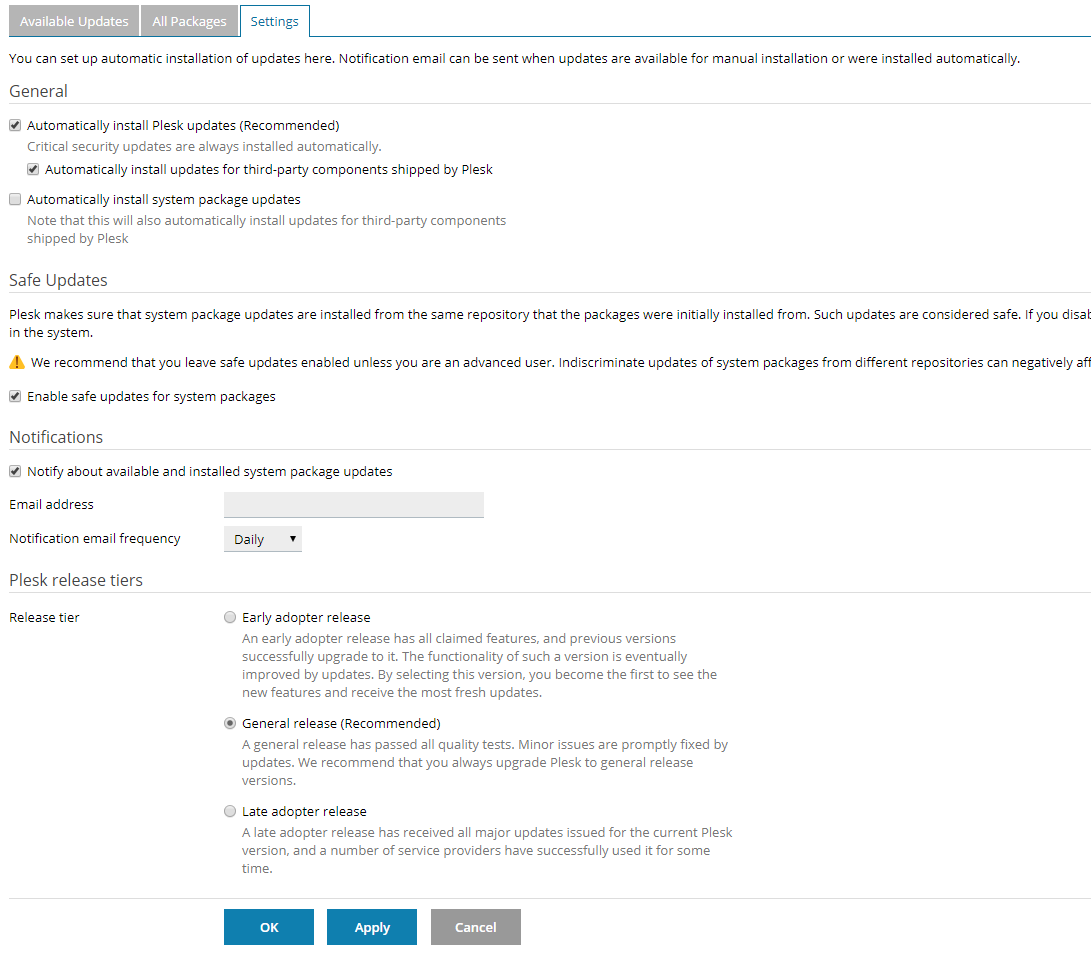
Plesk automatically installs most updates for Plesk and the software it uses, such as MariaDB. You do not normally need to update this software yourself.
Software that is no longer supported is not present in Plesk by default. When your VPS is delivered, it comes with recent PHP versions and does not include unsafe older versions.
No further action is required from you for Plesk updates. In this part, we focus on the following topics:
- Adjusting the PHP version & settings
- Plesk's automatic updates
- Manually checking for updates
Changing the PHP version and settings
The PHP version on new installations is always up-to-date. Should you want to adjust the version per domain you can do so as follows:
Step 1
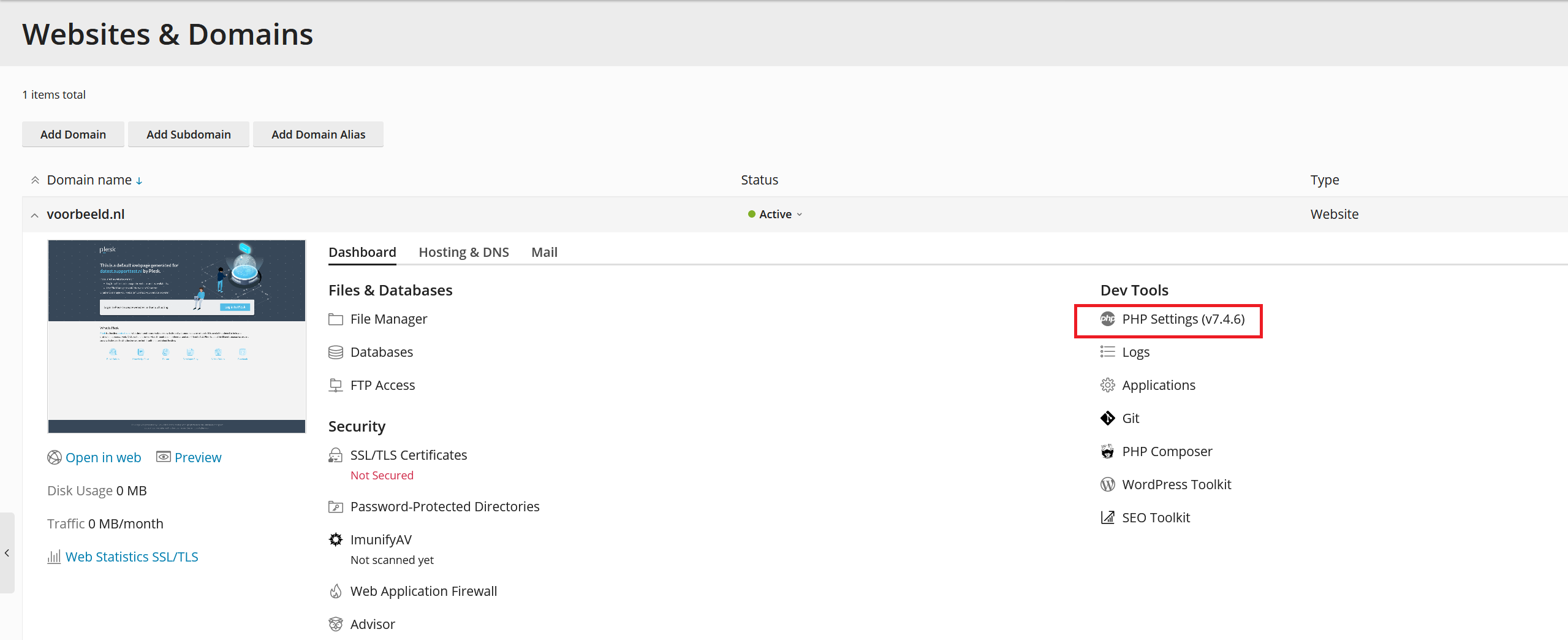
Log in to Plesk and navigate to 'Websites & Domains' > 'PHP Settings'.
Step 2
Change the PHP version to a version of your choice and at the bottom of the page click on 'Apply'> 'Ok'.
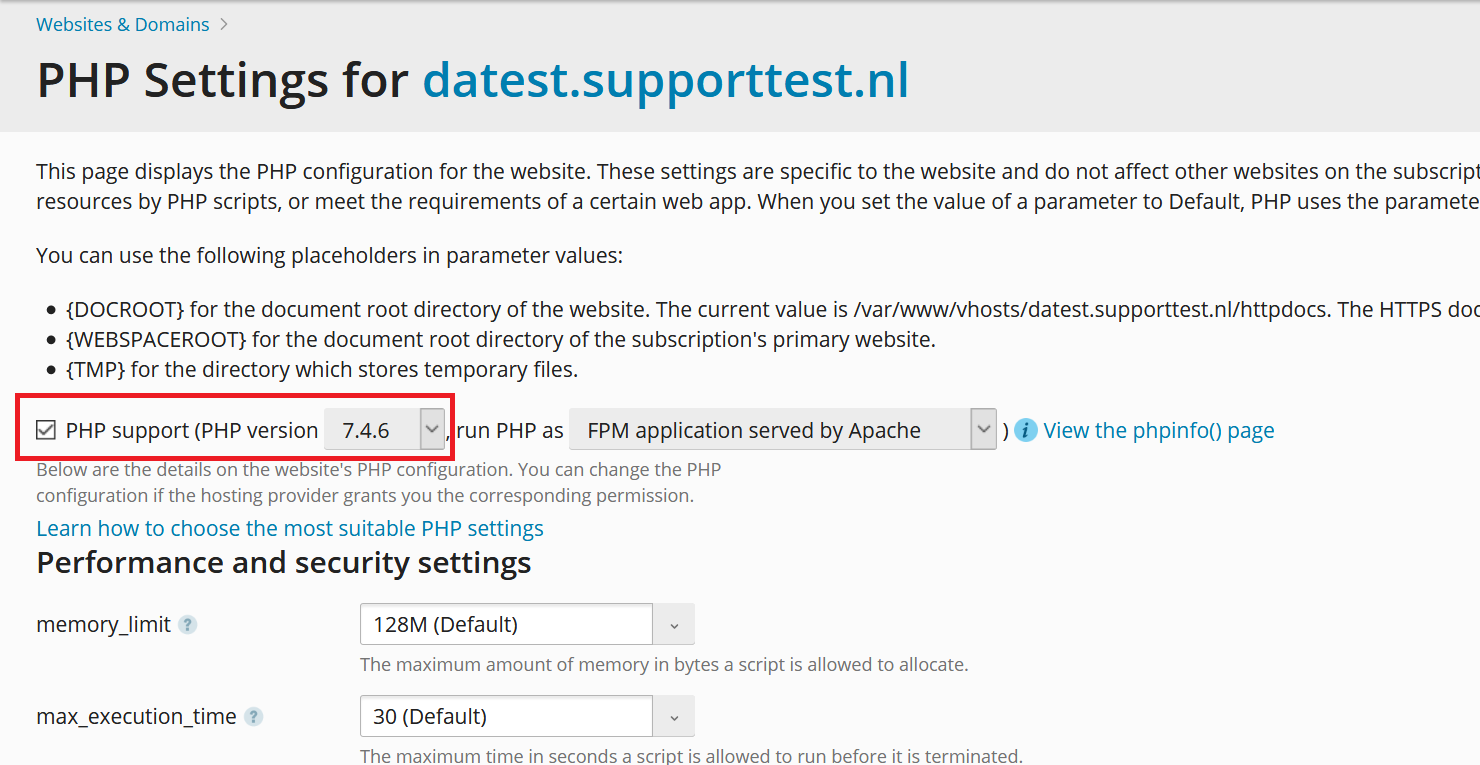
You are free to adjust the PHP settings on this page. However, we recommend that you leave / turn PHP-FPM via Nginx and not use FastCGI as FPM is faster. Additionally, as of Plesk 17.8 PHP-FPM with Nginx new caching mechanics are introduced. These mechanics will provide a significant performance gain for the loading of your websites' static objects and reduce CPU usage.
Step 3
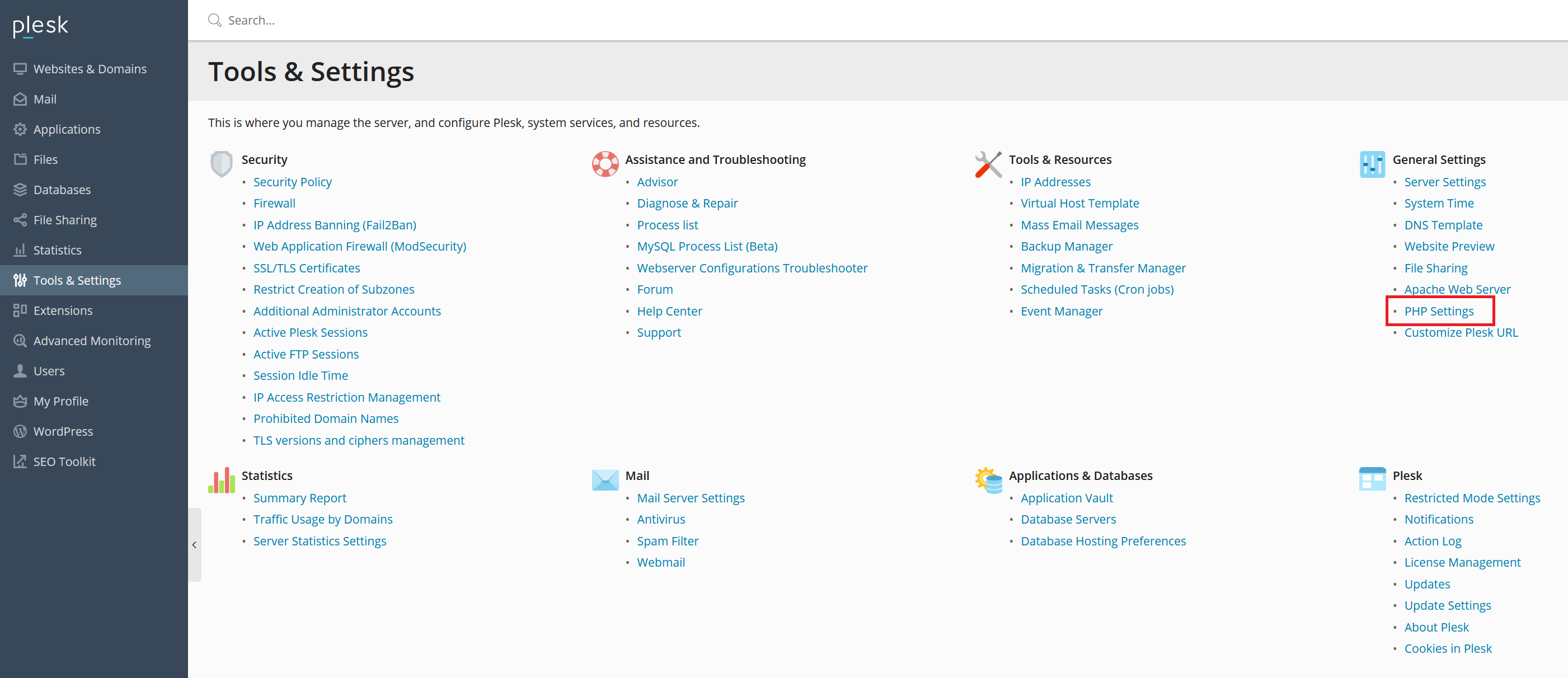
You may have noticed that some hard limits have been set, such as a Memory Limit of 128MB. Many CMS systems need more memory. To adjust this, go to 'Tools & Settings'> 'PHP Settings'.
Step 4
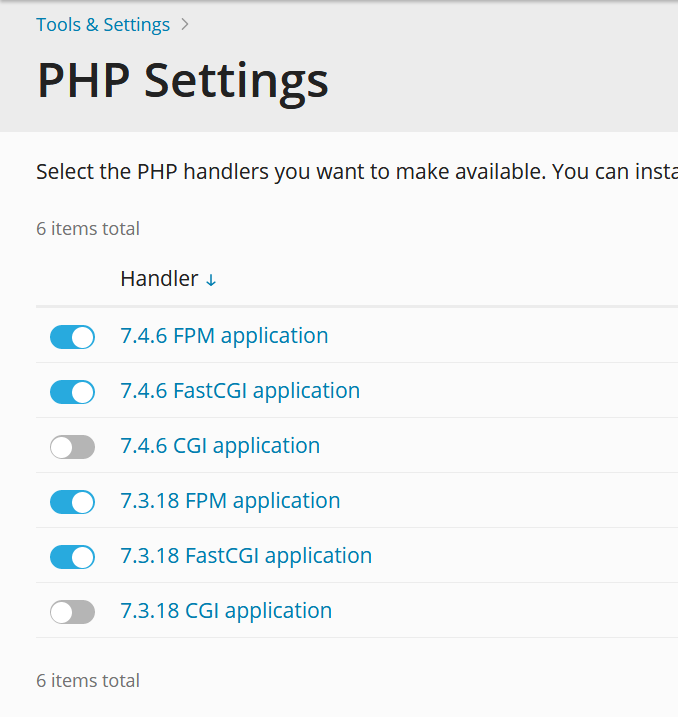
You will see an overview of the PHP handlers (a handler is a function that performs a specific task). Click on the number that you set in step 2, for example the relevant PHP FPM application.
Step 5
Click on the 'php.ini' tab. You will now see an overview of PHP settings for your selected PHP handler. Look for the hardcoded limit you want to look up (for example ctrl + f > memory_limit = 128M) and adjust the limit to the desired value. Then click on 'Ok'
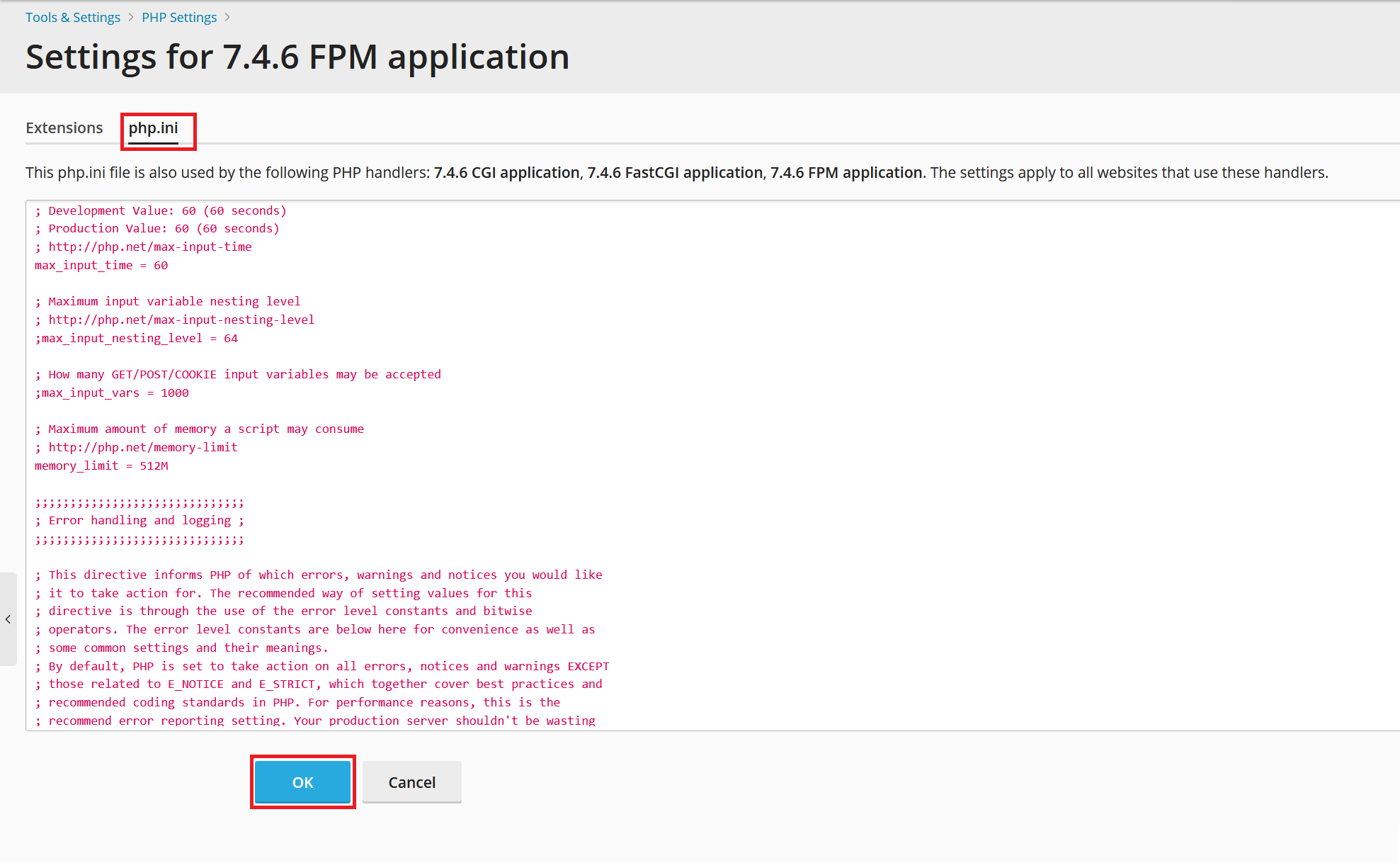
If you now return to 'Websites & Domains' > 'PHP Settings', you can adjust the value of the custom option. You must enter this value manually, for example by changing memory_limit to 512M. Then click 'Apply' to process the changes.
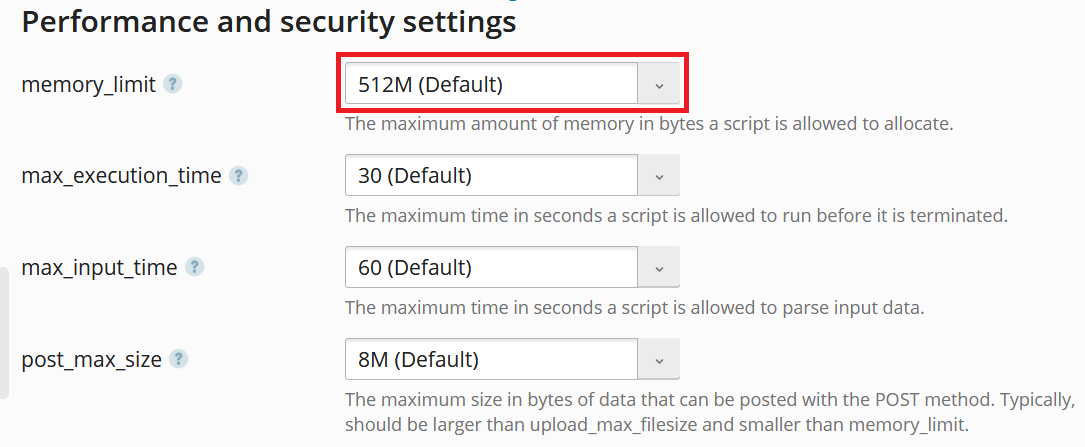
Please note: as an administrator, you can also adjust php.ini values per domain under 'Websites & Domains' > 'PHP Settings'. Those changes only apply to that domain and not to other accounts.
Plesk automatic updates
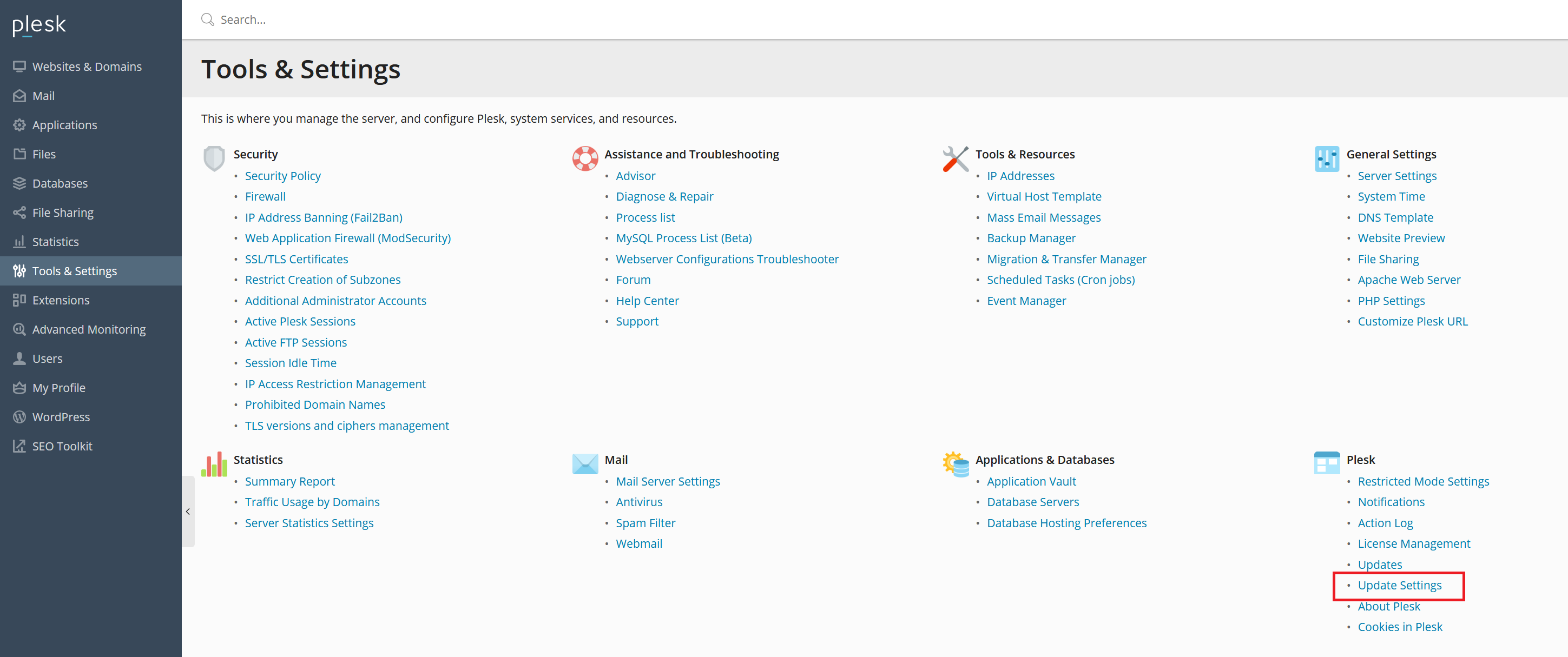
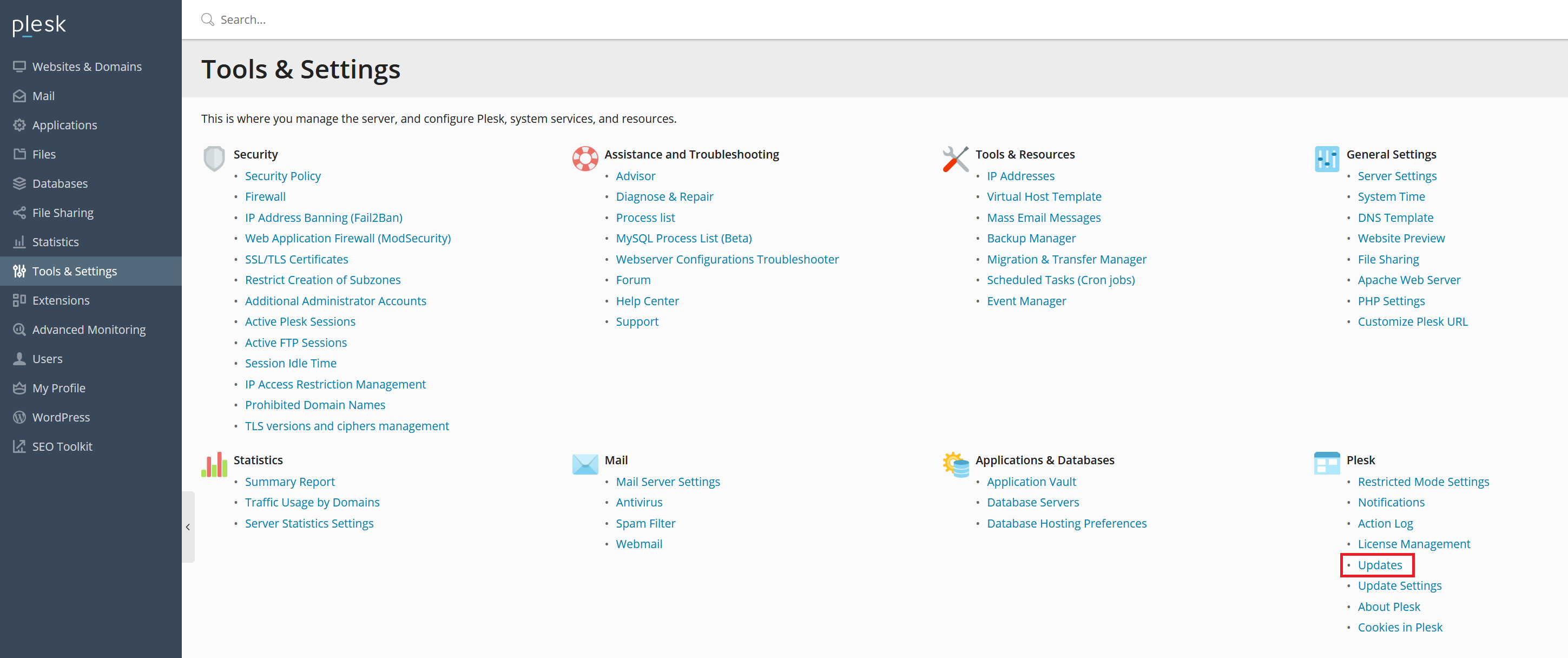
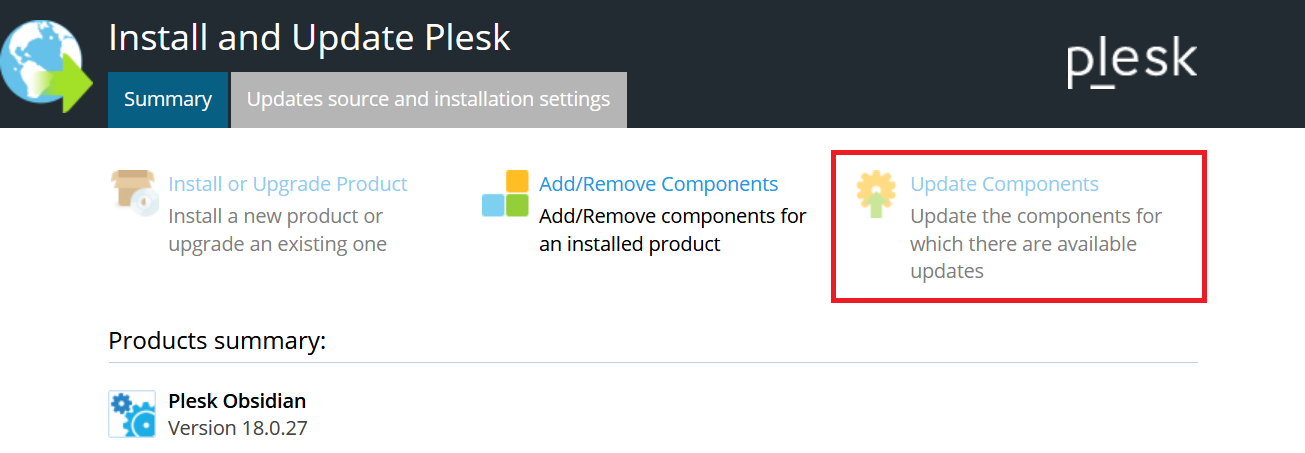
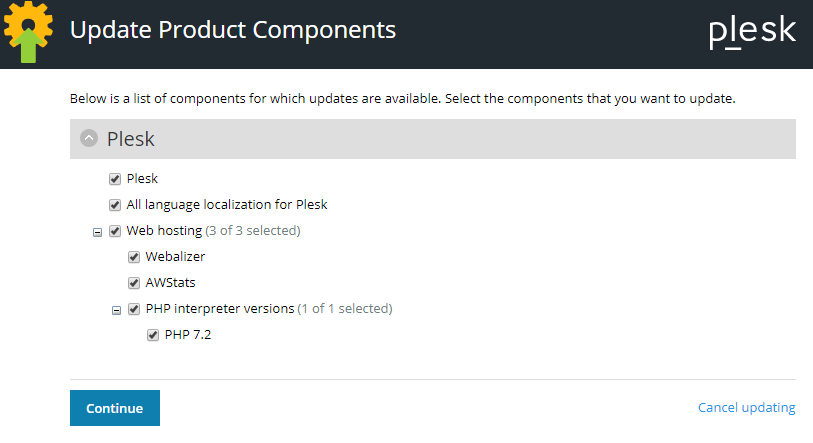
Updating Plesk manually