







With Docker, you can easily create, run, manage, and share containers both on your computer/laptop and in the cloud.
There are two ways to use Docker:
- By installing and using Docker Engine from a terminal. There are no additional costs involved.
- Through the Docker Desktop application. This comes with a GUI and has both free and paid licences.
Both options are suitable for using Docker. It is mainly important to ask yourself whether you prefer to work from a terminal or not. Please note: For both options, you must first install Docker's package repository.
In this tutorial, we show you how to install the Docker Desktop application and Docker Engine on a computer/laptop with a Linux distribution.
System Requirements
To use Docker on Linux, your computer/laptop must meet the following system requirements (minus the KVM/QEMU requirement if you install Docker Engine only):
- 64-bit operating system with a systemd init system
- Support for KVM virtualisation
- QEMU 5.2 or newer (the newer the better)
- CPU support for virtualisation
- At least 4 GB of RAM
- For Docker Desktop: GNOME, KDE, or MATE Desktop. In the case of GNOME, support for tray icons may be required, for example via the AppIndicator extension.
- For older Docker Desktop versions, file sharing via ID mapping in user namespaces may be required. For Docker Desktop 4.35 and later, this is no longer required.
Please note: Docker Desktop for Linux is currently officially documented for Ubuntu, Debian, RHEL, and Fedora. If you are using AlmaLinux, Rocky Linux, or CentOS Stream, Docker Engine is generally the safest option within Docker's official documentation.
Installing the Docker Package Repository
Regardless of whether you want to install the command-line daemon or Docker Desktop, you need Docker's package repository. You can install this using the steps below.
Step 1
First, update your operating system:
Ubuntu / Debian:
sudo apt -y update && sudo apt -y upgrade
CentOS Stream / RHEL / AlmaLinux / Rocky Linux:
sudo dnf -y update
Step 2
Next, install Docker's package repository and the required dependencies:
Ubuntu:
These commands install the packages required to use an HTTPS repository, add Docker's GPG key, and then add the repository itself.
sudo apt update
sudo apt install ca-certificates curl
sudo install -m 0755 -d /etc/apt/keyrings
sudo curl -fsSL https://download.docker.com/linux/ubuntu/gpg -o /etc/apt/keyrings/docker.asc
sudo chmod a+r /etc/apt/keyrings/docker.asc

sudo tee /etc/apt/sources.list.d/docker.sources <<EOF
Types: deb
URIs: https://download.docker.com/linux/ubuntu
Suites: $(. /etc/os-release && echo "${UBUNTU_CODENAME:-$VERSION_CODENAME}")
Components: stable
Architectures: $(dpkg --print-architecture)
Signed-By: /etc/apt/keyrings/docker.asc
EOF

sudo apt update
Debian:
These commands install the packages required to use an HTTPS repository, add Docker's GPG key, and then add the repository itself.
sudo apt update
sudo apt install ca-certificates curl
sudo install -m 0755 -d /etc/apt/keyrings
sudo curl -fsSL https://download.docker.com/linux/debian/gpg -o /etc/apt/keyrings/docker.asc
sudo chmod a+r /etc/apt/keyrings/docker.asc

sudo tee /etc/apt/sources.list.d/docker.sources <<EOF
Types: deb
URIs: https://download.docker.com/linux/debian
Suites: $(. /etc/os-release && echo "$VERSION_CODENAME")
Components: stable
Architectures: $(dpkg --print-architecture)
Signed-By: /etc/apt/keyrings/docker.asc
EOF

sudo apt update
CentOS Stream:
sudo dnf -y install dnf-plugins-core
sudo dnf config-manager --add-repo https://download.docker.com/linux/centos/docker-ce.repo
RHEL / AlmaLinux / Rocky Linux:
sudo dnf -y install dnf-plugins-core
sudo dnf config-manager --add-repo https://download.docker.com/linux/rhel/docker-ce.repo
Installing Docker Engine
After installing the Docker repository, installing and starting Docker Engine is relatively straightforward:
Ubuntu / Debian:
sudo apt install docker-ce docker-ce-cli containerd.io docker-buildx-plugin docker-compose-plugin
CentOS Stream / RHEL / AlmaLinux / Rocky Linux:
sudo dnf install docker-ce docker-ce-cli containerd.io docker-buildx-plugin docker-compose-plugin
sudo systemctl enable --now docker
On Ubuntu and Debian, the Docker service often starts automatically after installation. If you want to verify this, use:
sudo systemctl status docker
If necessary, start Docker manually:
sudo systemctl start docker
That's it! You can now test that Docker is working with the command:
sudo docker run hello-world
Installing Docker Desktop
Docker Desktop installation is relatively straightforward from this point onwards:
Step 1
Download the latest Docker Desktop package for your operating system via Docker's official documentation:
- Ubuntu: Docker Desktop on Ubuntu
- Debian: Docker Desktop on Debian
- RHEL / AlmaLinux / Rocky Linux: Docker Desktop on RHEL
- Fedora: Docker Desktop on Fedora
Docker does not provide one generic latest Linux download link that always returns the correct package for every distribution. Always download the most recent package from the official Docker Desktop page for your distribution.
Step 2
Install the Docker Desktop package you have just downloaded:
Ubuntu / Debian:
sudo apt-get update
sudo apt install ./docker-desktop-amd64.deb
RHEL / AlmaLinux / Rocky Linux:
sudo dnf install ./docker-desktop-x86_64-rhel.rpm
Fedora:
sudo dnf install ./docker-desktop-x86_64.rpm
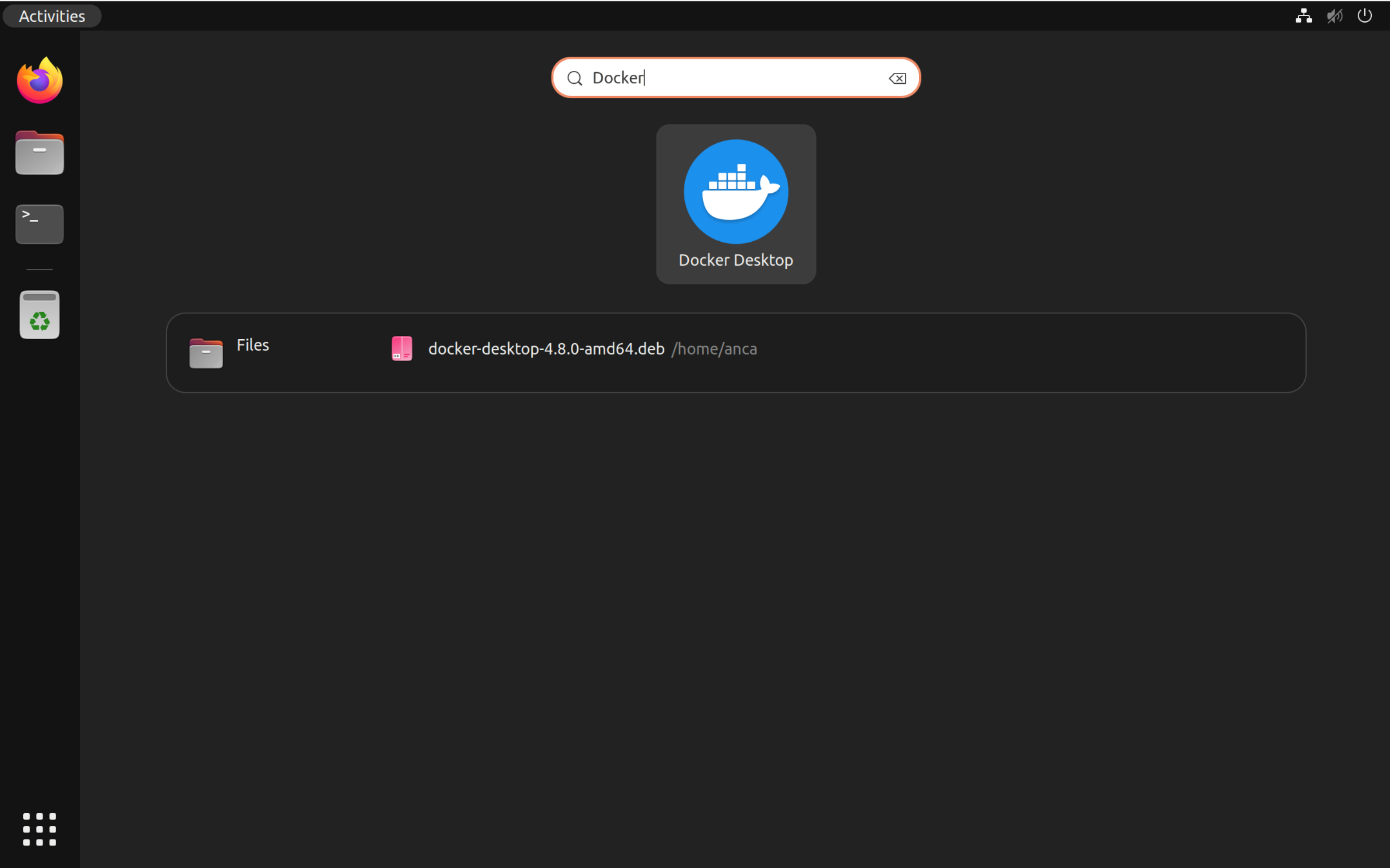
The installation of Docker Desktop is now complete. You can start Docker Desktop from the Applications menu.
Please note: if you are using RHEL / AlmaLinux / Rocky Linux with GNOME, additional steps may be required for pass, EPEL/CRB, and tray icon support. In that case, refer to Docker's official Docker Desktop guide for RHEL.